
Resize, convert, compress, clean up & remove backgrounds
Every image job.
One toolbox.
Resize a picture, change its format, shrink the file, clean up a tired one, or cut the background out. Pick one, drop in an image, take the result back. No sign-up, no uploads, nothing stored.
Nothing leaves your device · Phone, tablet and desktop · No account needed

The bench
Drop an image in, choose a job, take the file out.
What it does
Five jobs, each with its own controls. Nothing you didn't ask for happens to your picture.
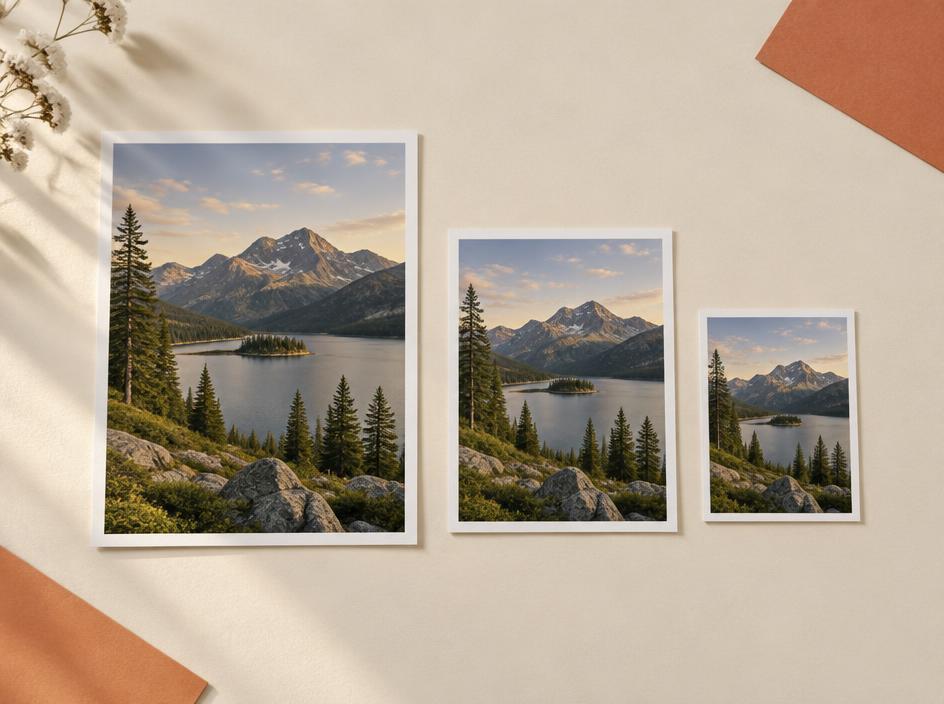
Resize without the guesswork
Set an exact width or height and the other side follows, so nothing looks squashed. Useful for listings, thumbnails and anything that has to fit a box.
- Width or height — the other one keeps the ratio
- 25%, 50%, 75% and 100% shortcuts
- The original size stays on screen while you type
Convert to the format you need
Save the same picture as PNG, JPG or WebP. JPG for photographs, PNG or WebP when the background has to stay transparent.
- Three formats from one drop
- Quality slider for JPG and WebP
- JPG gets a white fill, so transparent areas never turn black
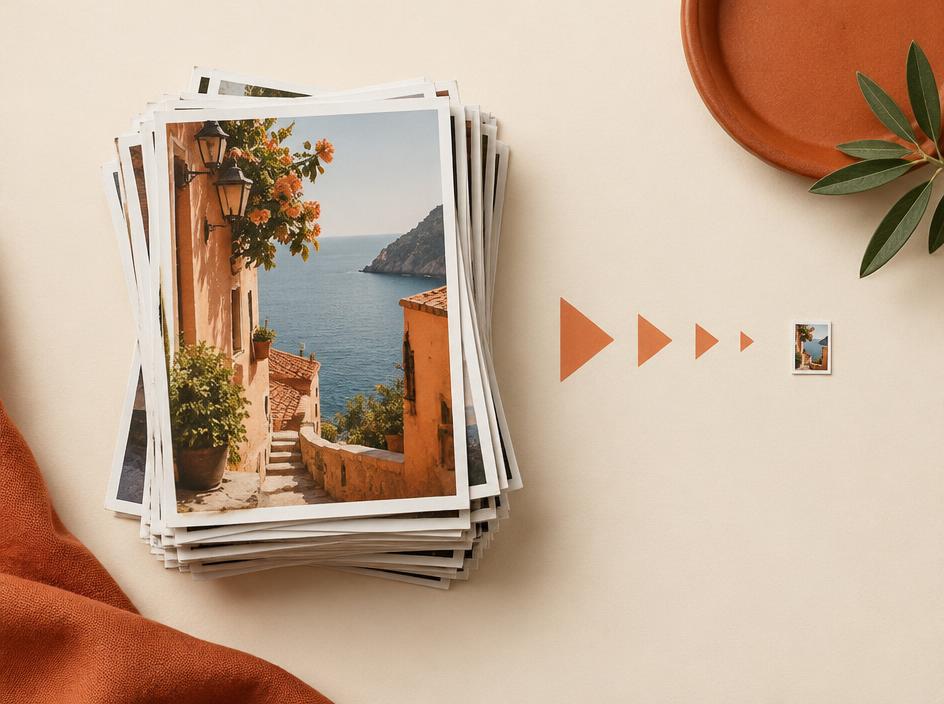
Shrink the file, keep the picture
Type a target in kilobytes and the tool drops quality only as far as it has to. If the file is already tight, it says so instead of handing back something bigger.
- Aim at a size like 100 KB, or just drag the quality slider
- Shows the before and after, and the percentage saved
- Refuses to give you a file larger than the one you started with
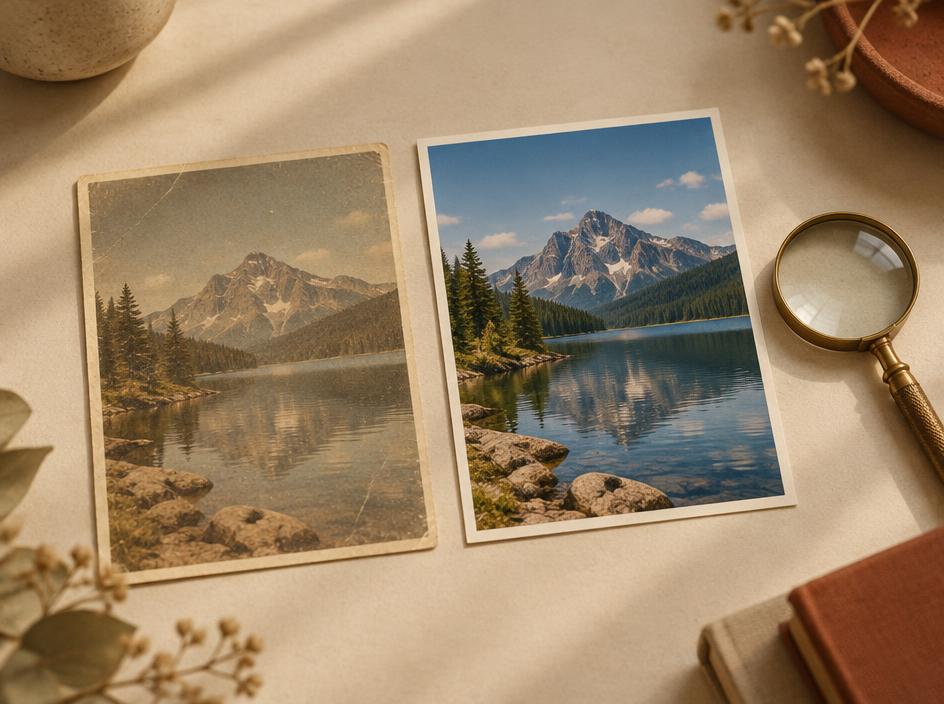
Clean up a tired photo
Sharpen a picture that came out soft, calm down the grain, lift faded colour, or enlarge a small photo and clean it as it grows. Renew does the lot in one pass.
- Sharpen, de-grain, un-fade, enlarge — or renew in one go
- Sliders, so you decide how far it goes
- On damaged photos it's a best-effort improvement, not a rebuild
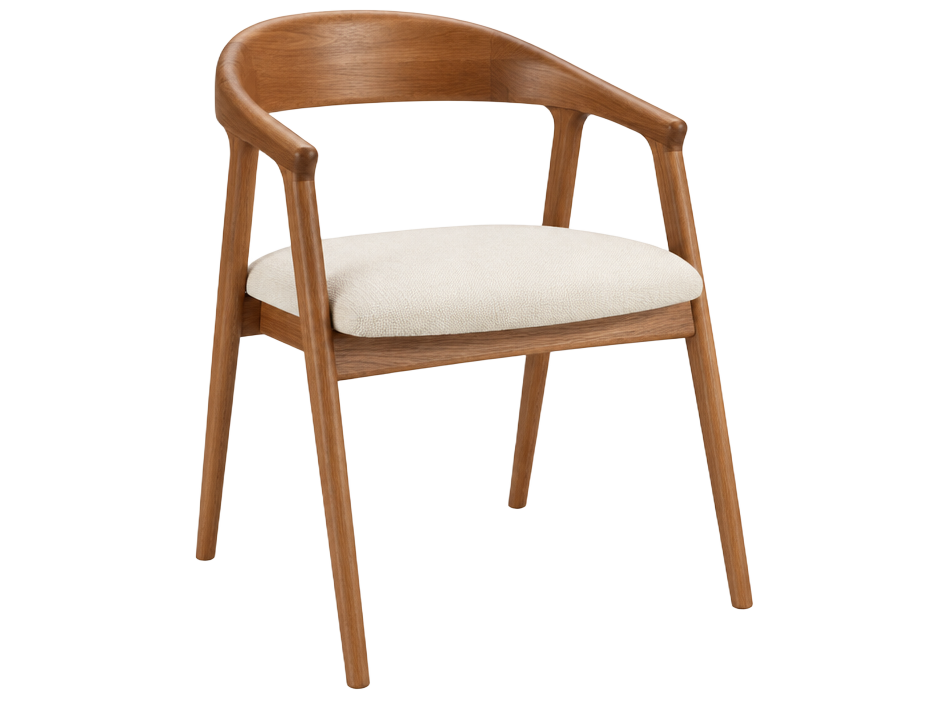
Lift the background out
Cut the subject free and take away a transparent PNG you can drop onto any colour. The first run downloads the model that does the cutting, so it takes a moment.
- Runs on your device, not on a server
- Comes out as a transparent PNG
- Keep resizing or shrinking it afterwards
How it works
01
Drop a picture in
Click the box or drag a file onto it. PNG, JPG, WebP and GIF all work.
02
Choose one job
Resize, convert, shrink, clean up or cut out. Only the controls for that job show up.
03
Take the file out
The download button shows the new size, and how much smaller it got.
Questions people ask
Do my photos get uploaded anywhere?
No. Every job runs in your own browser. The only network trip is the first background removal, which downloads the model that does the cutting — the picture itself stays put.
Does it work without a connection?
Once the page has loaded, resizing, converting and shrinking keep working with no connection at all.
What about really big photos?
Very large files can take a few seconds. Clean-up holds the whole picture in memory, so if one feels sluggish — or you're told it's too big — resize it first and then clean it up or shrink the file size.
Can it fix a damaged or old photo?
It can improve one: grain calms down, faded colour lifts, edges crisp up, and a small photo can be enlarged. It can't rebuild a torn, badly scratched or water-damaged picture — that needs a specialist who paints in the missing parts.
Can I use it on a phone?
Yes. The choices stack into a single column and the buttons are large enough for thumbs.
Is there a limit on how many images I can do?
No limit and no account. Hit start over and the next image has nothing to do with the last one.
Image Toolbox
Photo jobs that finish on your own device. Nothing uploaded, stored or shared.